How It Works
Setup takes about 10 minutes. Here's what's involved.
How to get started with Solido
Setup takes about 10 minutes. Here's what's involved.
Step 1: Connect Xero
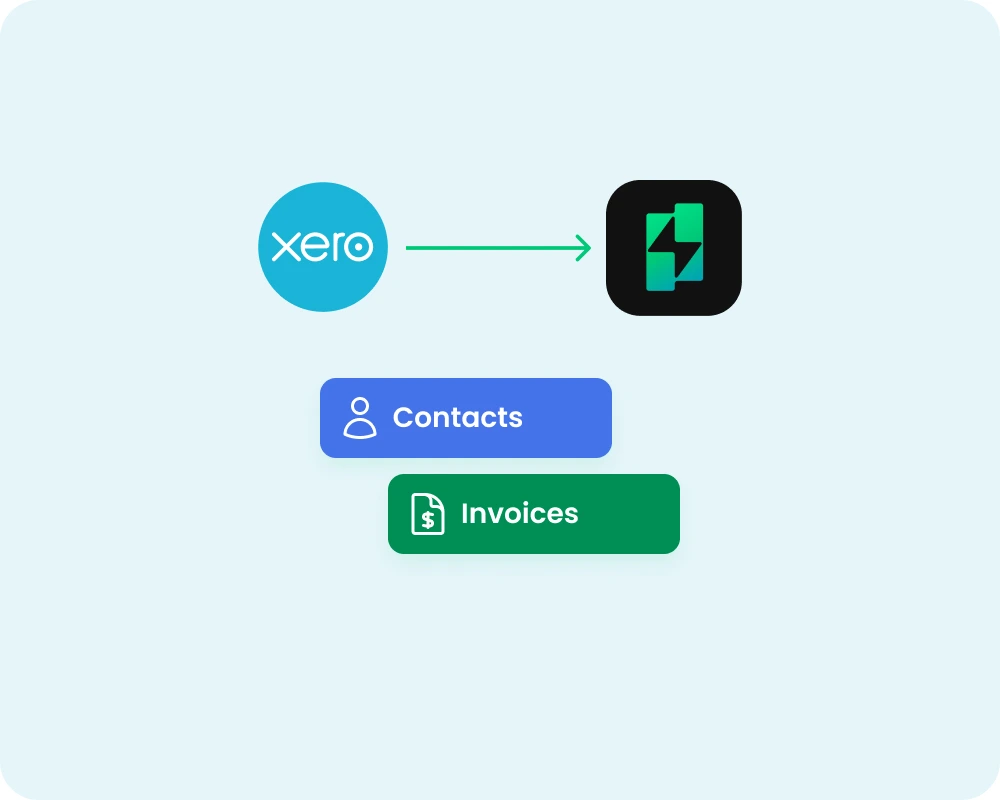
Start by linking your Xero account. This uses a secure OAuth connection - you log in through Xero, and Solido gets access to your invoice and contact data. No passwords are stored.
What happens:
- Your invoices sync automatically, including historical data
- Contacts come across with their email addresses and company details
- Payment status updates flow through automatically
Step 2: Connect your mailbox
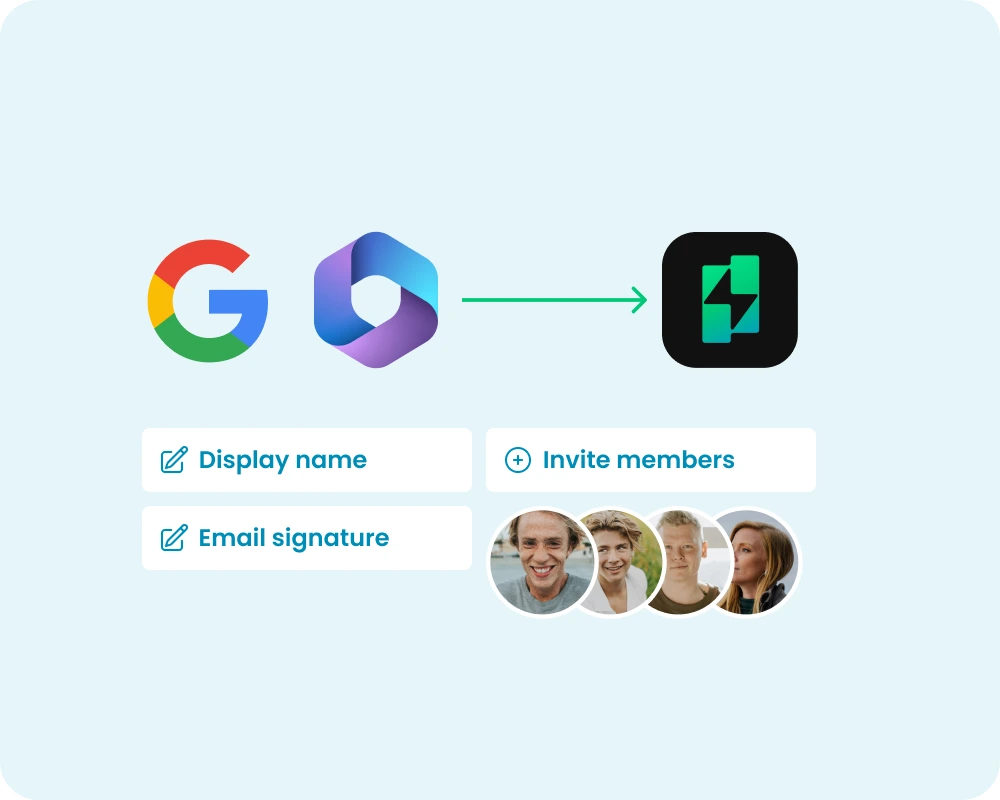
Next, connect your Microsoft 365 or Google Workspace account. This is the email address Solido will send reminders from. Clients can reply directly to the nominated account.
What happens:
- You authenticate through Microsoft or Google
- You set your display name and email signature
- You can invite team members to connect their mailboxes too so emails can be sent from them as well
Step 3: Set up your reminder schedule
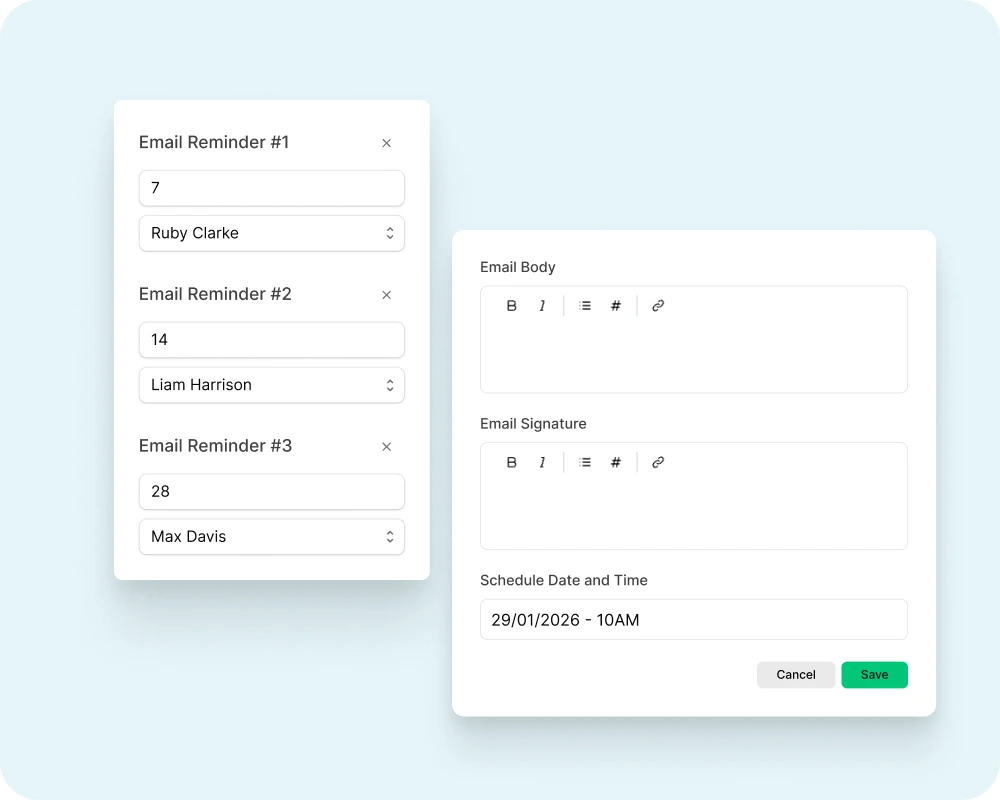
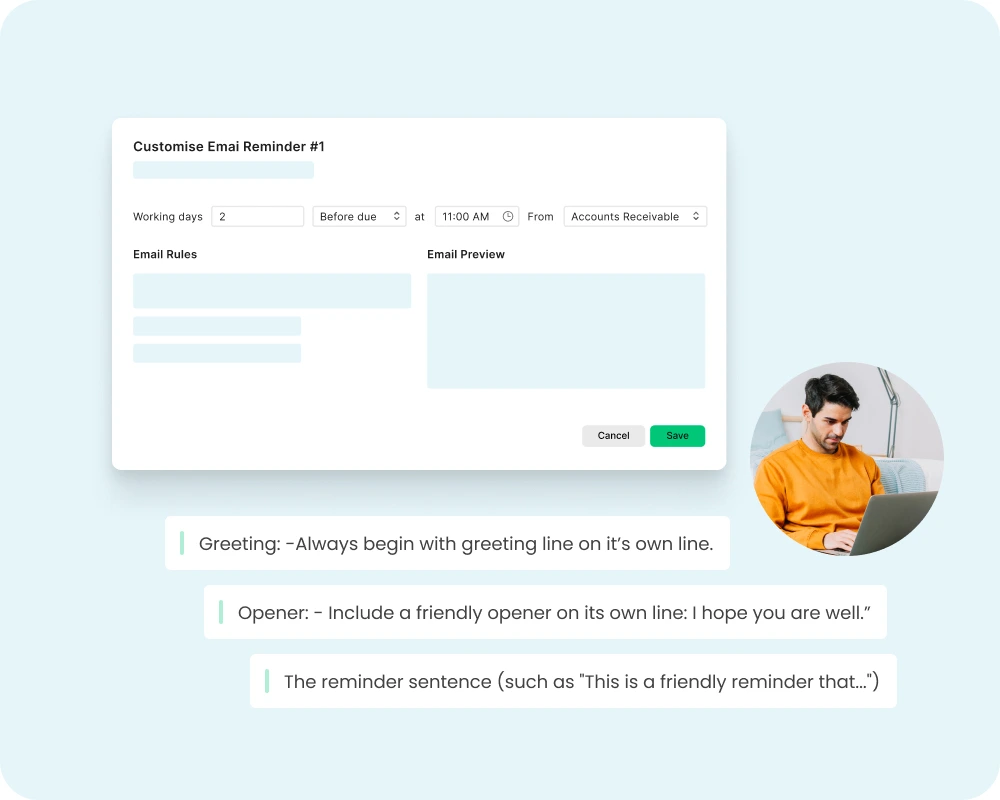
Solido comes with default reminder schedules you can use straight away, or you can customise them to tell Solido when and how to send reminders. You might set up a reminder for 2 days before the invoice due date, and then follow-up at 7, 14, and 30 days overdue. Or something completely different - it's up to you.
What you'll configure:
- How many days before or after the due date to send reminders
- What time of day reminders will be sent
- Which days of the week will reminders be sent on
- Which mailbox to send the reminder from
Step 4: Set the rules for each reminder
Each reminder stage has its own settings. You choose which mailbox sends it, and you can add any rules you like to control how the email is written - tone, what to emphasise, how direct to be, or anything else that matters for that stage. Solido generates the email based on your rules, and invoice details are included automatically.
What you'll configure:
- Sending mailbox - choose which connected email account sends each reminder
- Your rules - write any instructions you like (e.g. "keep it brief and friendly" or "be more direct, mention this is a second reminder")
- Stage-specific settings - early reminders might be gentle, later ones more firm
Step 5: Monitor and adjust
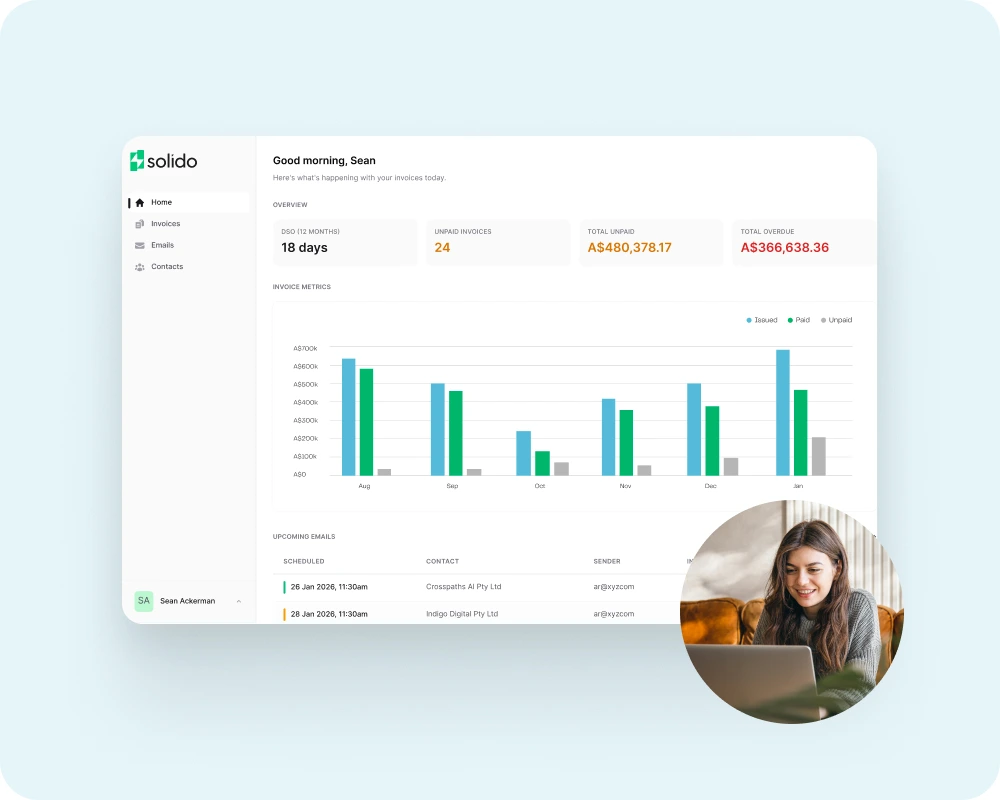
Once you've set things up, Solido runs in the background. Reminders go out on schedule, and payment statuses update automatically. You can check in whenever you like from the dashboard.
What happens:
- Unpaid totals and DSO on the dashboard
- Upcoming emails for the next 30 days
- Recent email activity
- Invoice payment status in real time
You can adjust things anytime
Each reminder stage has its own settings. You choose which mailbox sends it, and you can add any rules you like to control how the email is written - tone, what to emphasise, how direct to be, or anything else that matters for that stage. Solido generates the email based on your rules, and invoice details are included automatically.
What you'll configure:
- Sending mailbox - choose which connected email account sends each reminder
- Your rules - write any instructions you like (e.g. "keep it brief and friendly" or "be more direct, mention this is a second reminder")
- Stage-specific settings - early reminders might be gentle, later ones more firm